When a USB drive fails to appear in File Explorer, the disruption is immediate: documents, backups, or media transfers stall until the issue is resolved. This scenario has become more common under Windows 11, where driver handling and storage stack behavior differ noticeably from earlier versions.
The root cause often lies not in hardware failure but in how Windows 11 processes USB mass storage devices. Unlike previous OS iterations, Windows 11 introduces stricter validation of device descriptors and a more aggressive approach to driver binding. These changes, while intended to improve stability, can inadvertently block legitimate peripherals from initializing correctly.
Why It Happens
USB drives may be ignored due to one of three primary factors: an outdated or incompatible USB driver, a corrupted storage stack component, or a conflict with a third-party driver. The first two are relatively straightforward to address; the third requires deeper investigation into installed software stacks.
- A missing or generic USB mass storage driver prevents Windows from recognizing the device at all.
- Corruption in the storage port driver (storport.sys) can cause the system to reject valid devices without logging an error.
- Antivirus or disk management utilities sometimes intercept USB initialization, delaying or preventing recognition entirely.
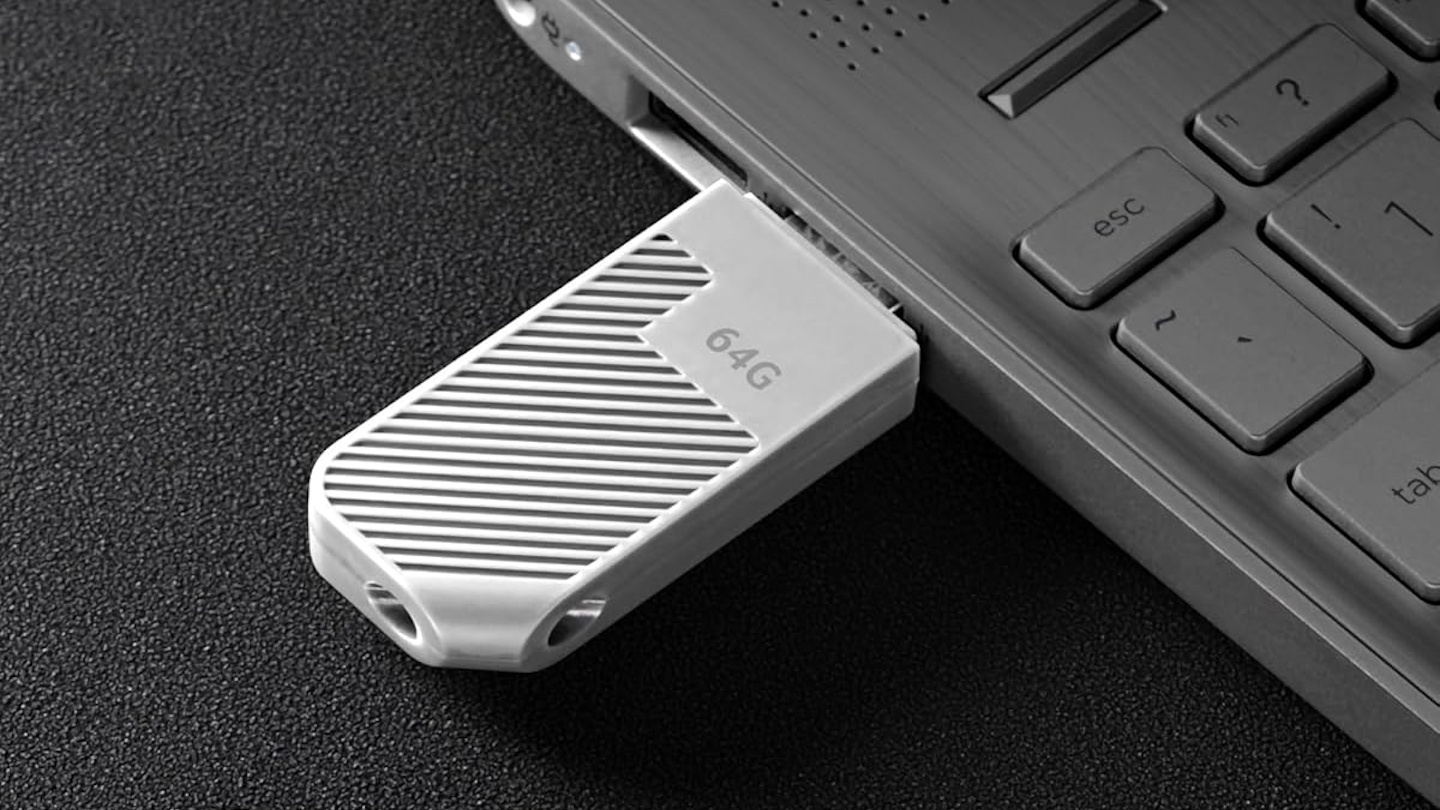
A practical example: a user plugs in a 128 GB USB 3.0 drive formatted as exFAT. Under Windows 10, it would mount instantly; under Windows 11, the system may show no activity, even though the device is detected in Device Manager under 'Disk drives' but labeled with an unfamiliar vendor ID.
How to Restore Functionality
The fix path begins with isolating the problem. If the drive appears in Device Manager but not in File Explorer, the issue is likely driver-related rather than hardware. IT teams should first attempt a clean driver reinstall using the built-in 'Update driver' option, selecting the Microsoft-provided USB mass storage class driver.
When that fails, manually resetting the storage stack can resolve deeper corruption. This involves stopping and restarting the 'Storage Service' via Services.msc, then rebooting. In cases where third-party software is the culprit, temporarily disabling services like antivirus or disk optimization tools can restore normal operation.
For persistent issues, checking Windows Update for pending driver updates—particularly those labeled 'USB' or 'storage'—is critical. Some OEM-specific drivers released after Windows 11's initial rollout address recognition quirks that were not caught in beta testing.
A Strategic Shift in Stability
This problem highlights a broader trend: Windows 11’s stricter device validation, while improving long-term reliability, introduces short-term friction for IT teams managing legacy peripherals. The solution lies in proactive driver management and recognizing that 'not recognized' does not always mean 'broken.' It often means the system is enforcing new rules that require manual confirmation.
The groups that benefit most from resolving this are enterprise environments where USB drives serve as temporary storage for firmware updates, backups, or data transfer between secure networks. A 10-minute interruption can cascade into delays across multiple workflows, making swift troubleshooting a critical skill.