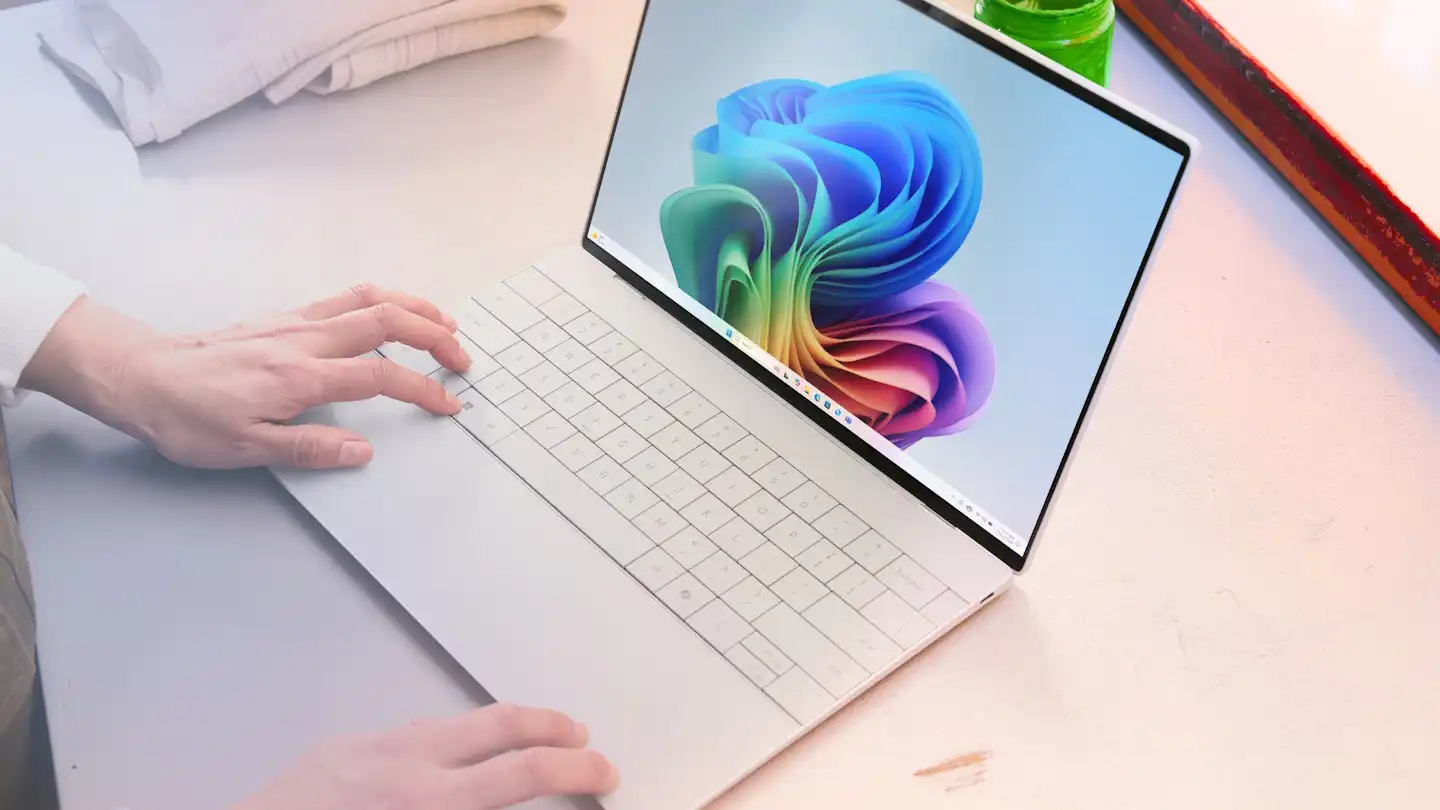
A laptop that’s warmer than a freshly baked loaf isn’t just uncomfortable to touch—it’s a red flag. Excessive heat can force your device into thermal throttling, where performance drops to prevent overheating, or even trigger sudden shutdowns. Worse, chronic overheating accelerates wear on internal components, cutting the lifespan of your investment. The good news? Most overheating issues are preventable with simple adjustments and maintenance. Whether your laptop is a thin ultrabook or a beefy gaming machine, these strategies can restore balance without requiring a full teardown.
The problem often starts small: a dust-clogged vent here, a blocked airflow path there, or a thermal paste that’s dried out like old glue. Even environmental factors—like a cramped workspace or a room that feels like a sauna—can push a laptop to its limits. The solution isn’t always about upgrading hardware. Sometimes, it’s about reclaiming the cooling system your laptop already has.
Six Ways to Stop Your Laptop from Boiling Over
If your laptop’s fan sounds like a jet engine on takeoff or shuts down mid-task, it’s time to act. The fixes range from quick tweaks to deeper maintenance, but none require advanced technical skills—or a voided warranty if done carefully.

- Throttle the CPU: Reduce maximum processor power to 75% in Windows power settings. This cuts heat output by making the CPU work less hard. Pair it with a Balanced power plan instead of High Performance for better thermal management.
- Unblock the airflow: Laptops need space to breathe. Elevate them on a stand or cooling pad to prevent vents from being smothered by soft surfaces like beds or couches. Keep at least six inches of clearance from walls or furniture.
- Banish the dust: Power off the laptop and use compressed air to blow out dust from vents and fans. A soft brush can clean debris around the openings without pushing it deeper inside. Do this every few months—or more often if you’re in a dusty environment.
- Refresh the thermal paste: This heat-conducting compound degrades over 3–4 years, forcing CPUs to run hotter. Reapplying a high-quality paste like ARCTIC MX-6 (around $6) can restore cooling efficiency. Note: This requires disassembling the laptop and may void warranties if mishandled.
- Manage charging habits: Laptops generate extra heat when charging. Unplug once the battery hits 100%, or use charge-limiting features to cap at 80%. If your laptop has a removable battery, consider using it unplugged for extended sessions.
- Cool the room: Ambient temperature matters. Keep your workspace below 75°F (24°C) using fans, air conditioning, or open windows. Avoid placing the laptop near heat sources like radiators or in direct sunlight.
These steps address the most common causes of overheating, but they also reveal a deeper truth: modern laptops are designed to handle everyday use, not to be neglected. A little attention—like cleaning vents regularly or adjusting power settings—can prevent the kind of heat buildup that turns a $1,500 machine into a $300 paperweight.
For gamers or power users, additional measures like undervolting (reducing CPU voltage) or upgrading thermal pads can help, but they require more effort. Start with the basics first. If your laptop still runs hot after these changes, it might be time to evaluate whether the cooling system is adequate for your workload—or if a more robust machine is needed.
Availability: Most solutions require no purchase beyond optional cooling pads (starting at $20) or thermal paste (around $6). Room temperature control depends on existing HVAC or fans.