For users navigating the complexities of digital accounts, certain Microsoft account settings act as silent efficiency boosters—small adjustments that cut through routine friction without drawing attention. These controls, often overlooked until after they’re needed, can save time on password resets, device management, and security checks.
The tradeoff is minimal: a few minutes spent reviewing preferences today could mean fewer interruptions later. Yet for those who treat account setup as a one-time chore, the benefit remains untapped. Microsoft’s approach here reflects a broader trend in tech—relying on defaults that work well enough for most users but leave room for customization when needed.
Where These Settings Fit in Microsoft’s Ecosystem
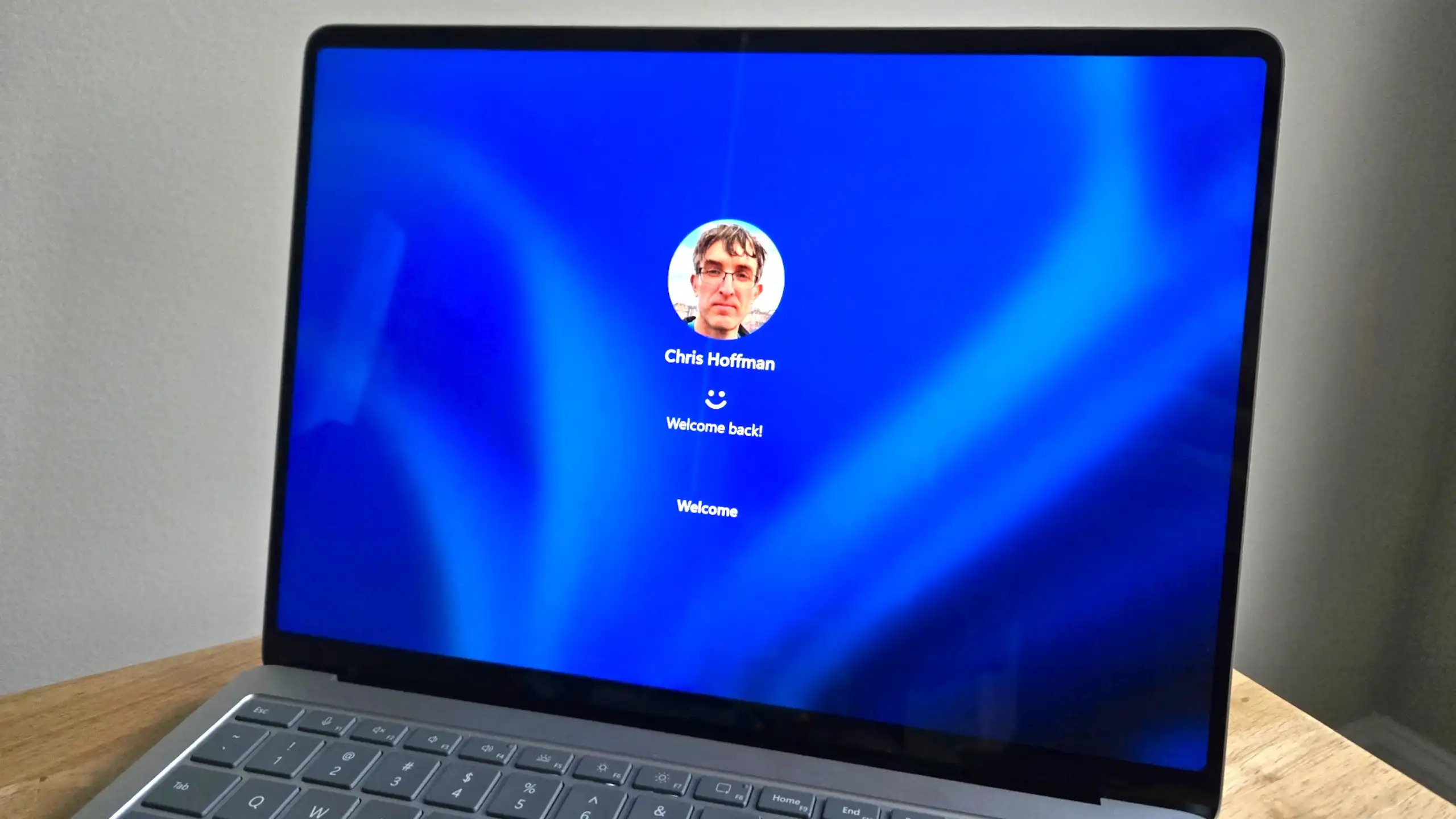
Microsoft accounts are the backbone of access across Windows devices, Xbox consoles, and online services. The settings discussed here are not isolated tweaks; they form a connected layer that ties together security, device pairing, and recovery options. For example, enabling two-factor authentication or setting up trusted phone numbers can turn an otherwise seamless login into one that feels more secure without slowing it down.
Key Adjustments for Everyday Users
- Two-factor authentication: Adds an extra layer of security without disrupting frequent logins. Supported on Windows 10 and later, as well as Xbox Series X|S and Xbox One consoles.
- Trusted devices list: Lets users whitelist devices where they frequently sign in, reducing prompts for verification codes or passwords. Works across all modern Microsoft platforms.
- Security info updates: Consolidates recovery options—email addresses, phone numbers, and alternate accounts—in one place, making it easier to update if personal details change.
- App-specific permissions: Allows granular control over which apps (like Office or Outlook) can access the account, useful for work or shared devices. Available on Windows 10 and Windows 11.
These changes are most valuable for users who juggle multiple devices or services under one Microsoft account. For those with a single laptop and no sensitive data, the effort may not justify the reward. But for professionals or families managing accounts across work and home, these settings can reduce daily friction significantly.
A Reflection on Long-Term Utility
Microsoft’s design philosophy here is pragmatic: defaults that balance security and convenience, with customization available for those who need it. The result is a system that serves the majority without alienating power users. Yet, as digital footprints grow, so does the need for visibility into these controls. For now, the best practice remains simple: spend five minutes reviewing account settings before they become critical.