Losing access to a USB drive can feel like a digital disaster. One moment, it’s holding critical files or cherished photos; the next, Windows refuses to recognize it, files vanish, or the system demands a format—effectively erasing everything in the process. But rushing to format isn’t always the answer. Three targeted fixes can often restore functionality and retrieve data without permanent loss.
Corruption often reveals itself in frustrating ways: files that refuse to open, missing folders despite no deletion, or a drive that simply vanishes from File Explorer. Even worse, some systems may display error messages insisting the drive needs formatting to function. These are red flags that the drive’s structure or communication with the operating system has broken down—not that the data itself is irretrievable.
The first step in recovery is using specialized software. Tools like Disk Drill bypass standard file systems to scan for recoverable data. The process begins by creating a byte-to-byte backup of the corrupted drive, ensuring no further damage occurs during recovery. Once the backup is secure, the software scans for lost files, allowing users to preview and restore them to a safe location—never back to the original drive, as that risks overwriting critical data.
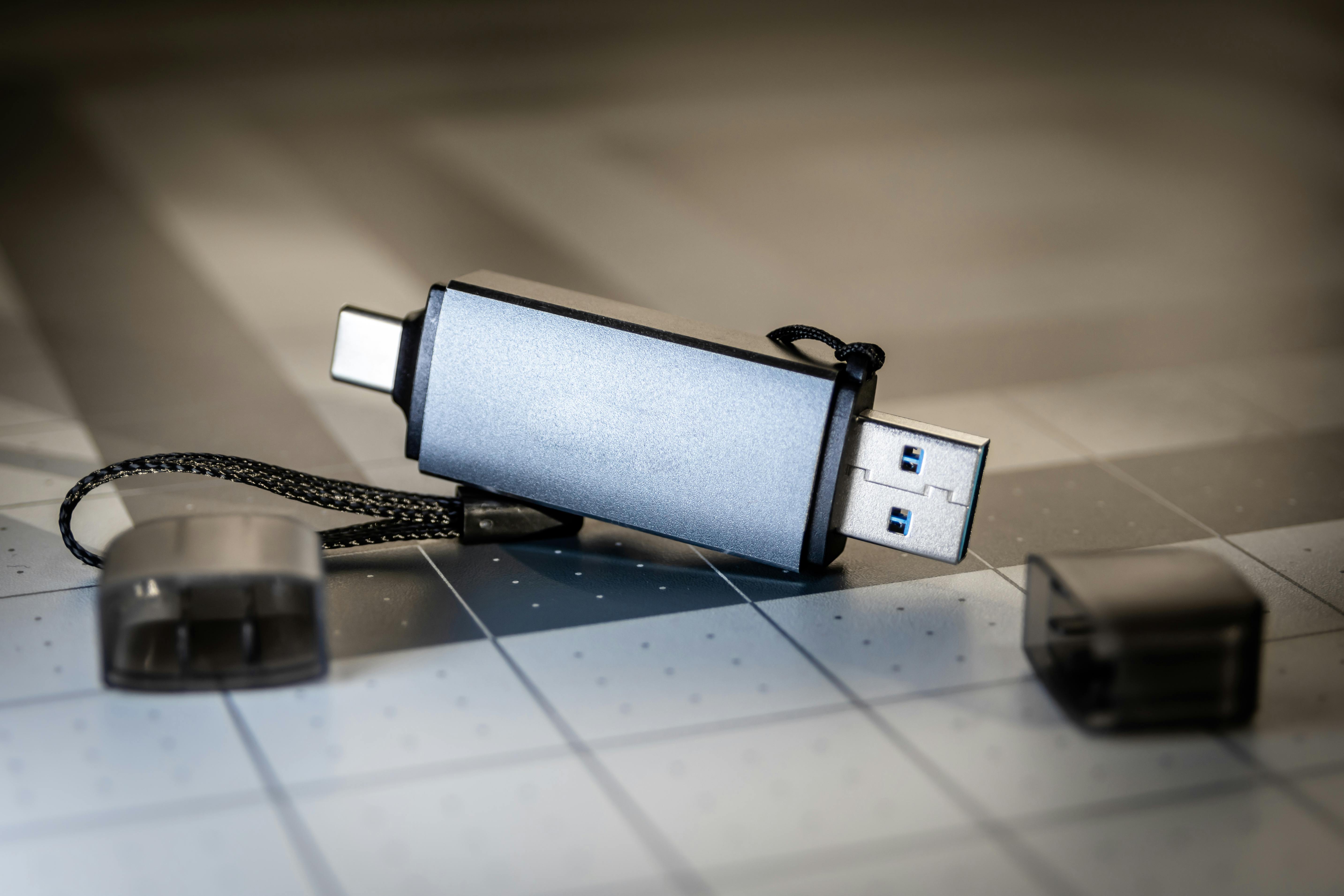
If software recovery doesn’t work, the issue might lie in the drive’s metadata. Windows sometimes fails to recognize a USB drive because its assigned drive letter has become corrupted or conflicts with another device. Reassigning a new letter through Disk Management can force the system to re-establish communication. This method is quick and doesn’t alter the data, making it a low-risk solution for drives that are detected but inaccessible.
When even drive letters fail, the problem often traces back to the USB drivers—the invisible software layer that enables communication between the drive and the OS. Reinstalling these drivers resets the connection. After uninstalling the device in Device Manager and physically disconnecting and reconnecting the USB, Windows automatically reinstalls the latest drivers, often restoring functionality.
These three fixes—software recovery, drive letter reassignment, and driver reinstallation—cover the most common causes of USB corruption. Attempt them in order: start with the software method, as it carries the highest chance of success and minimal risk. Only if all else fails should formatting be considered the last resort.
Prevention, however, remains the best strategy. Always eject USB drives safely through the system tray rather than yanking them mid-transfer, and maintain regular backups of critical data. While no drive lasts forever, these habits can spare hours of frustration—and potentially lost files—down the line.