Your desk setup might be costing you more than productivity. A study of office workers with chronic neck and shoulder pain found that 87% had monitors positioned incorrectly, forcing their heads into unnatural angles for hours daily. The fix isn’t expensive—it’s adjusting the display to align with your body’s natural posture.
The problem starts with distance. For monitors between 21 and 27 inches, the ideal viewing distance is roughly an arm’s length—about 20 to 30 inches from your eyes. Sit in your chair, extend your arm straight ahead (without straining), and your fingertips should just graze the screen. Larger displays can sit farther back, but text clarity becomes critical; most users need to adjust scaling or resolution to avoid squinting.
Height is where most setups fail. The top of your monitor should sit at or just below eye level, creating a 10- to 15-degree downward tilt for your gaze. This mimics how we naturally read—without forcing the neck into a permanent crick. Bifocal wearers should lower the screen further and tilt it upward slightly to align with the lower lens prescription. Ignore this, and you’re inviting repetitive strain injuries that can escalate into herniated discs over time.
Five Adjustments That Redefine Comfort
- Center the screen: Even with dual monitors, avoid extreme side angles. If side monitors are unavoidable, stack them vertically to reduce neck rotation.
- Follow the ‘thirds rule’: Position the monitor so your eyes rest between the top edge and one-third down the display. This prevents constant upward or downward strain while reading or coding.
- Tilt for the eyes: A slight upward tilt (10–15 degrees) reduces glare and aligns with how eyes focus naturally. Bifocal users may need a steeper angle.
- Block glare: Position monitors perpendicular to windows or bright lights. Matte screens and adjustable blinds can cut reflections that force eye fatigue.
- Pair with peripherals: Keyboards and mice should sit at elbow height to avoid wrist strain. A monitor arm or riser lets you fine-tune height without sacrificing desk space.
Glare isn’t just an annoyance—it’s a productivity killer. Bright reflections force the brain to work harder to process images, accelerating eye strain. The solution is simple: rotate the monitor 90 degrees relative to light sources, or switch to a matte panel if glare persists. For those stuck with fixed setups, a monitor arm with tilt and swivel offers the flexibility to rotate displays away from windows.

The payoff isn’t just physical. Proper monitor placement can reduce headaches by 60% and improve typing speed by up to 15% by eliminating awkward postures. The transition feels unnatural at first—muscles resist change—but within weeks, the body adapts. Start with small tweaks: raise the monitor an inch, tilt it slightly, or reposition it an arm’s length away. Over time, the difference between discomfort and ease becomes undeniable.
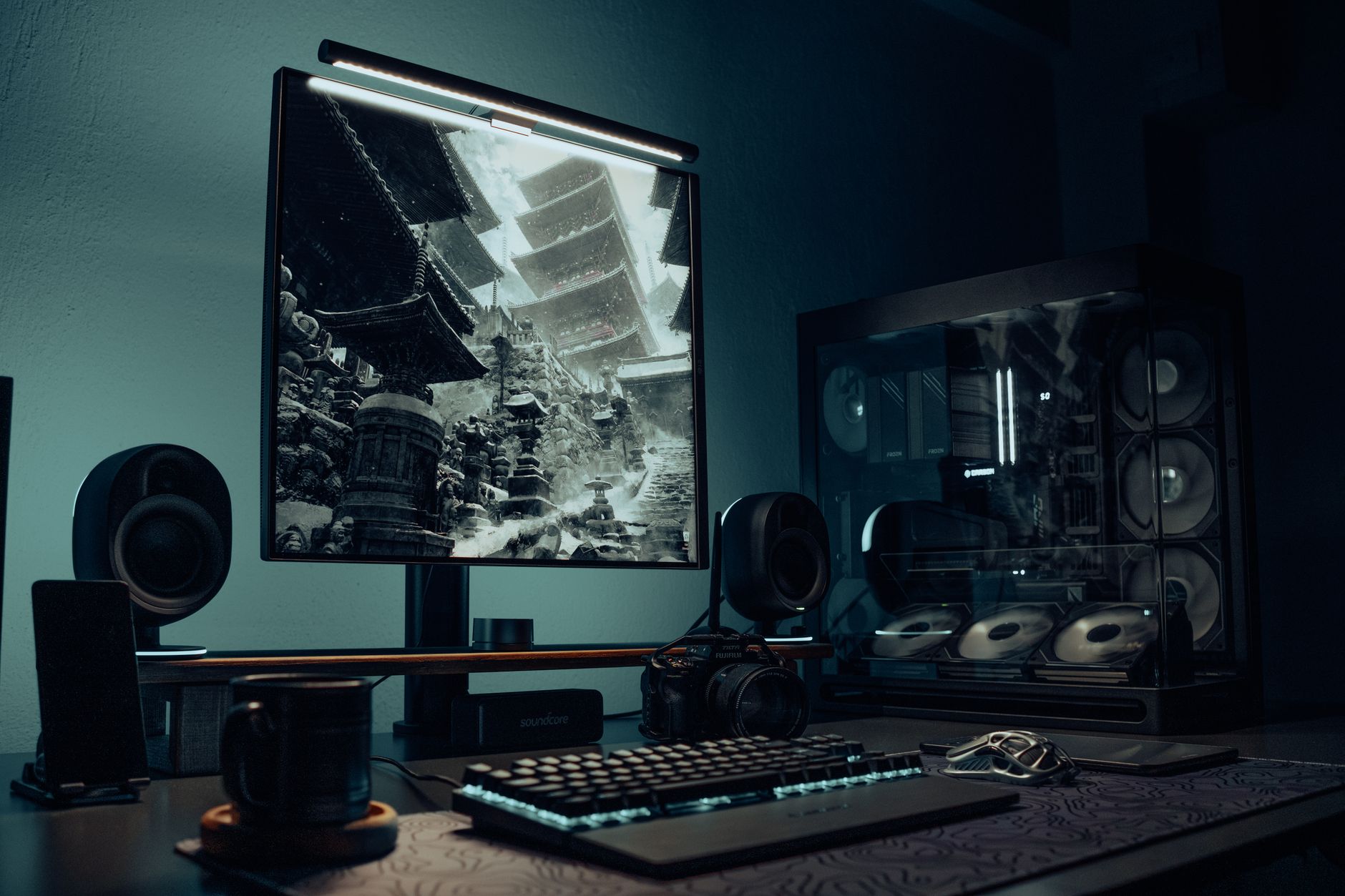
For gamers or creative professionals, the stakes are higher. Extended sessions with poor ergonomics can lead to ‘text neck,’ a condition where the neck’s weight strains the spine like an extra 60 pounds of pressure. The fix? A monitor arm with height adjustment and a standing desk to alternate between sitting and standing. Even a $50 riser can transform a static setup into one that moves with you.
Most people adjust their monitors once and forget about them. But ergonomics isn’t static—it’s a dynamic balance. Revisit your setup every few months as your body changes or new equipment arrives. The goal isn’t perfection; it’s creating a workspace that doesn’t punish you for eight hours a day.