A GPU that suddenly runs hotter than usual is rarely just background noise; it’s often the first sign of something deeper—dust clogging airflow, a failing fan bearing, or even a driver quirk that spikes power draw without warning. For developers and performance-focused users, the challenge isn’t just cooling the chip back down but figuring out whether the problem is software, hardware, or both—and when to accept that an upgrade (or replacement) is the only real solution.
There’s no single ‘correct’ temperature for a GPU, especially as models shift between 8 nm and 7 nm processes and clock speeds creep higher. A high-end card from last year might run 10–15 °C hotter under identical workloads than its successor, yet still stay within safe limits if the cooling system is clean and undamaged. The real red flag isn’t a single temperature reading but a sudden, unexplained jump—say, from 70 °C to 85 °C overnight—that doesn’t drop after reboots or driver updates.
Below are the practical steps to diagnose the issue without jumping straight to thermal paste or new hardware. Each check is designed to rule out common culprits before diving deeper
- Baseline Check: Monitor idle and load temperatures for 15 minutes under a stable driver version (e.g., Adrenalin 23.x). If the jump persists across reboots, hardware is more likely than software.
- Dust & Airflow: Power off, remove the GPU, and inspect fin spacing with a flashlight. A single layer of dust can raise temps by 5–10 °C under sustained load; a clogged heatsink can push it closer to 20 °C if airflow is completely blocked.
- Fan Curve & Bearing Noise: Listen for grinding or uneven whirring at mid-range RPM (around 4,500–5,500). A bearing that’s worn but not yet failed will still spin smoothly; a seizing bearing often starts with a high-pitched squeal before stalling.
- Driver & Power Draw: Compare power usage in BIOS vs. OS-controlled mode (e.g., 240W vs. 300W at the same clock). A 15–20% spike without an overclock is often a driver misreporting TDP, not actual heat.
- Memory & VRM Health: Run MemTest86 for 2 passes to catch silent memory errors that force the GPU to throttle. A failing VRM module (common on multi-GPU cards) can also mimic thermal throttling by capping clocks prematurely.
The most common fix—reapplying thermal paste with a fresh, thin layer—often works for dust-related spikes but rarely addresses deeper issues like worn bearings or VRM degradation. If the GPU still runs hot after cleaning and a new paste job (e.g., Arctic MX-6 or Noctua NT-H2), the next step is to check whether the fan profile can be adjusted without hitting RPM limits. Some cards (like the RTX 4090) allow manual curves down to 30% duty cycle, but this trades longevity for immediate cooling.
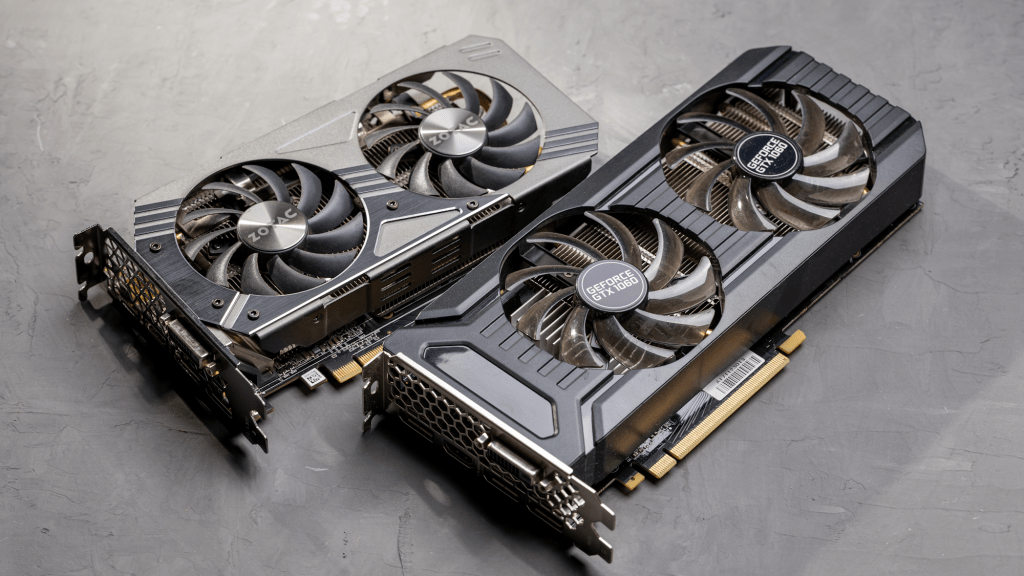
When hardware diagnostics hit a wall—say, after cleaning and repasting the GPU still jumps 15 °C under load—the decision becomes whether to upgrade or live with throttling. A mid-range card from two generations ago (e.g., RTX 3070) will run cooler than a high-end model from last year if it’s clean, but only if the workload hasn’t moved beyond its efficient power range. For developers, this means balancing between raw performance and thermal stability; a hotter GPU today might be obsolete tomorrow, making the upgrade path the more pragmatic choice.
The single most important takeaway is that GPU temperature isn’t just about cooling—it’s a symptom of how well the hardware, drivers, and workload align. A clean heatsink, correct fan curves, and up-to-date drivers can eliminate 80% of spikes without touching the chip itself. The rest often requires accepting that some models simply run hotter by design, and the only lasting fix is moving to a cooler platform—whether that’s a new card or a system with better airflow from day one.