Windows 11’s default setup prioritizes Microsoft’s vision over user convenience. The result? A taskbar that shifts icons unpredictably, a barrage of notifications, and persistent ads disguised as helpful suggestions. The good news: Fixing these issues doesn’t require deep technical knowledge or hours of configuration.
Why these changes matter
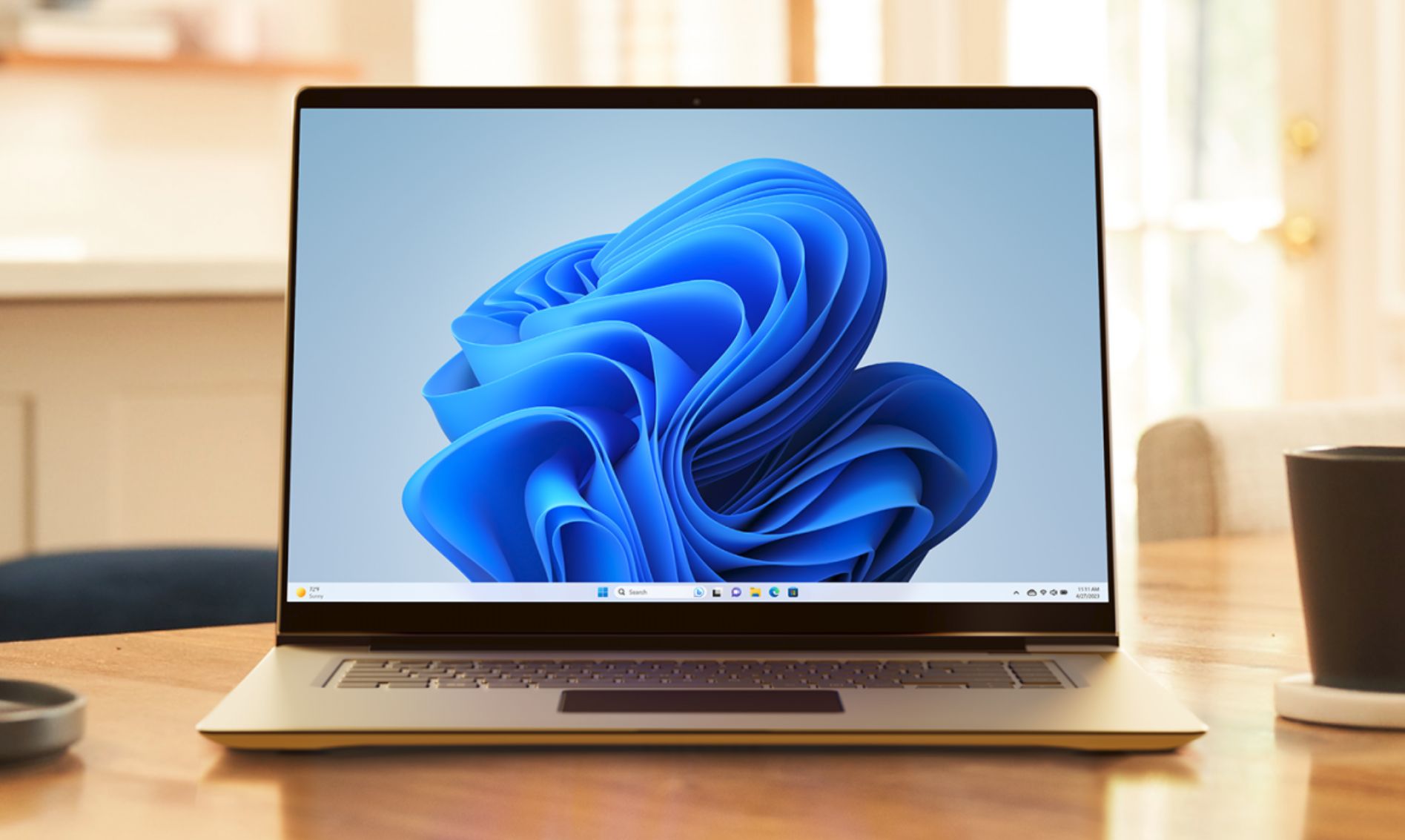
Microsoft’s redesigns often favor consistency across devices (like ultrawide monitors) at the expense of familiar workflows. The left-aligned Start button, for instance, was a deliberate shift toward macOS-style layouts—but one that disrupts muscle memory for longtime Windows users. Similarly, the taskbar’s default clutter (Widgets, Copilot, Store shortcuts) and aggressive notifications treat the OS as a promotional tool rather than a productivity platform.
These tweaks address those friction points without sacrificing modern features. The goal isn’t to revert to Windows 10 but to tailor the system to how users actually work.
1. Restore the Start button to its traditional home
The centered taskbar was Microsoft’s attempt to unify Windows across screen sizes, but for most users, it’s a needless adjustment. Reversing it is straightforward
- Open Settings > Personalization > Taskbar.
- Under Taskbar behaviors, change Taskbar alignment from Center to Left.
This single change alone reduces cognitive load by returning the Start menu to a fixed, predictable location. The trade-off? On ultrawide displays, the taskbar may feel cramped—but for standard monitors, the benefit outweighs the cost.
2. Silence the notification overload
Windows 11’s notification system is designed to compete with mobile OSes, but the default settings prioritize volume over relevance. Third-party bloatware (common on prebuilt systems) compounds the problem by flooding the action center with trivial alerts.
- Go to Settings > System > Notifications.
- Disable notifications for non-essential apps (e.g., Xbox, Microsoft Store, or manufacturer utilities).
- For critical apps (antivirus, messaging tools), toggle notifications on selectively.
Pro tip: Scroll to the bottom of the notifications menu to disable Windows’ own tips and suggestions, which often duplicate settings already visible in the UI.
3. Eliminate Microsoft’s built-in advertising
Windows 11 doesn’t just track usage—it actively promotes Microsoft services. Ads for Office, Xbox, and Bing appear in Settings, the lock screen, and even the Start menu. Disabling them requires three targeted adjustments
- Settings > Privacy & security > General: Turn off Show me suggested content in the Settings app.
- Settings > Personalization > Device Usage: Disable all data collection options to prevent personalized ad targeting.
- Lock screen settings: Change the background from Windows Spotlight (Bing-powered) to a static image or slideshow.
These steps don’t just remove ads—they reduce the amount of telemetry sent to Microsoft, improving privacy without sacrificing core functionality.
4. Set your preferred browser as default
Microsoft Edge is fast and integrates tightly with Windows, but many users prefer alternatives like Chrome, Firefox, or Brave. Switching defaults is simpler than it seems
- Install your browser of choice.
- If prompted during setup, select Make this my default browser.
- If no prompt appears, navigate to Settings > Apps > Default apps, select your browser, and click Set default.
This change affects file associations (e.g., opening PDFs or HTML files) and ensures links in Windows apps (like File Explorer) open in the correct browser.
5. Declutter the taskbar for efficiency
The default taskbar includes shortcuts most users never need: Widgets, Copilot, and the Microsoft Store icon. Removing them streamlines access to frequently used apps and reduces visual noise.
- Go to Settings > Personalization > Taskbar.
- Under Taskbar items, toggle off any icons you don’t use (e.g., News, Weather, or Store).
For users who miss Windows 10’s taskbar, third-party tools like Stardock’s Start11 (priced at $5) offer deeper customization—including the ability to pin the Start button to the left and restore classic menu behaviors. While not necessary, these tools bridge the gap for power users.
Bonus: Enable dark mode for comfort
Dark mode isn’t just an aesthetic choice—it reduces eye strain, extends battery life on OLED screens, and aligns with modern app design trends. Activating it is effortless
- Open Settings > Personalization > Colors.
- Under Choose your mode, select Dark.
Note: Some apps (like Microsoft Edge) require separate dark mode toggles, but Windows will propagate the setting where possible.
Why this matters beyond aesthetics
These adjustments collectively transform Windows 11 from a one-size-fits-all product into a personalized tool. The changes are cumulative
- Fewer distractions improve focus.
- Reduced telemetry enhances privacy.
- A familiar layout decreases friction.
For users who’ve grown accustomed to Windows 10—or who simply prefer efficiency over novelty—these tweaks restore balance. And unlike major overhauls, they require no technical risk or long-term commitment.
Beyond these five settings, deeper customization is possible. Users might explore
- Disabling forced updates via Group Policy (for Pro editions).
- Replacing the default app store with third-party alternatives.
- Using PowerToys for advanced keyboard and mouse customization.
But for most, the five changes above deliver 80% of the benefit with minimal effort. The remaining 20% can wait—because Windows 11, once tweaked, becomes a far more usable system.