As artificial intelligence increasingly weaves into everyday computing, Microsoft has quietly rolled out a privacy safeguard for Windows 11 users: the ability to completely block AI assistants from accessing open application windows through the taskbar.
The feature, buried in recent builds of Windows 11, arrives amid rising concerns over how AI tools interact with sensitive or personal content. While AI integration—such as Copilot’s ability to summarize or analyze visible screen content—has been framed as a productivity booster, not all users want to grant such access by default.
The new setting, titled Share any window from my taskbar with virtual assistant, appears in the taskbar’s right-click context menu under a dedicated AI permissions section. When enabled, it allows AI assistants to read visible content in active windows, generate summaries, or offer contextual guidance—without ever taking control of the application itself. But with a simple toggle, users can now disable this functionality entirely.
The AI Taskbar Feature: What It Does (and Doesn’t)
This isn’t the first time Microsoft has experimented with AI-driven window interaction. Earlier iterations of the feature required manual screen-sharing, but the latest version automates the process for taskbar-pinned applications. For example, if Copilot is enabled, opening a document or browser window could trigger an AI-generated summary of its contents—visible as an overlay or in a side panel—without requiring the user to copy and paste text.
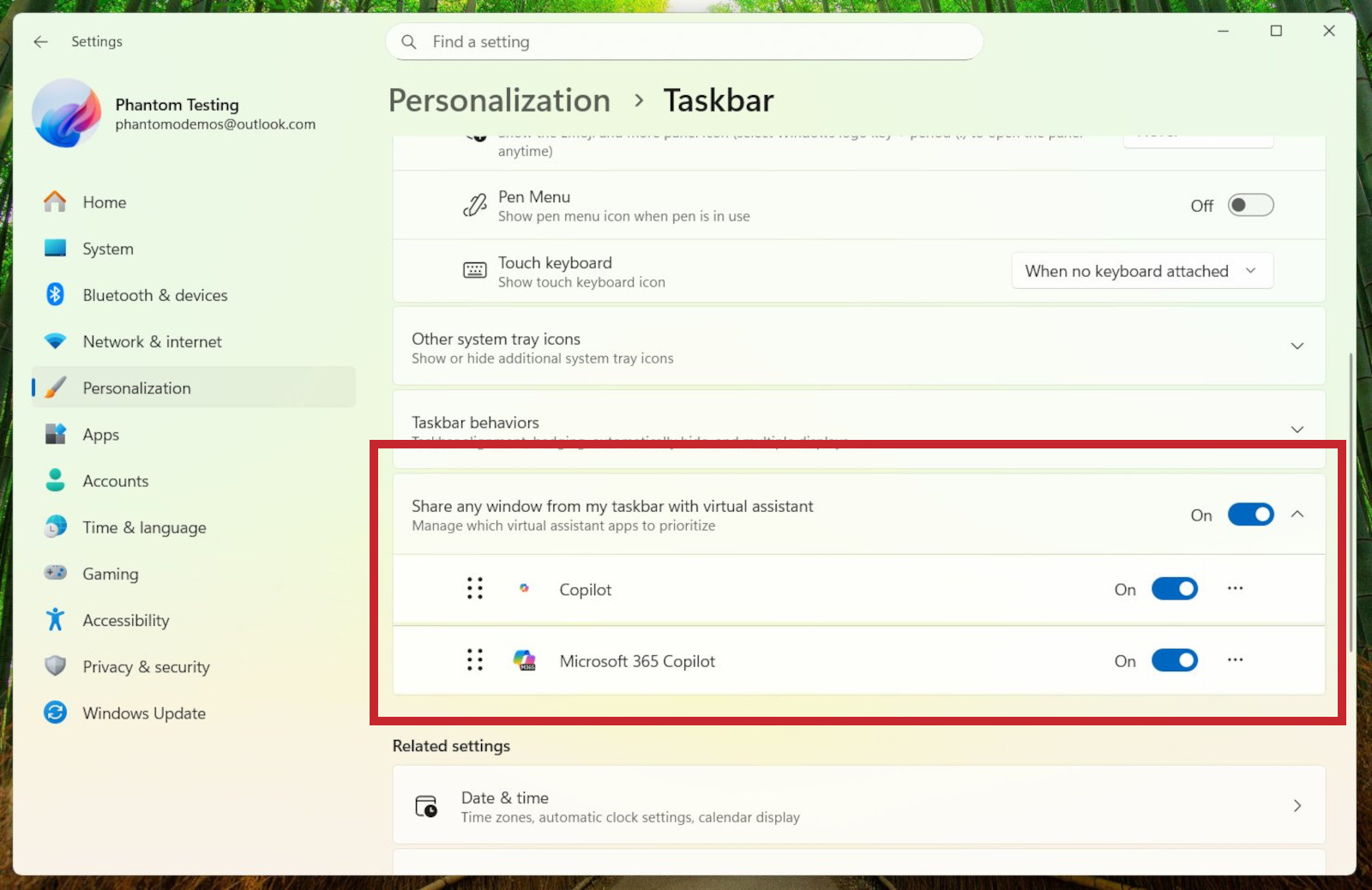
However, there are clear limits to what the AI can do. Unlike full remote desktop tools, Copilot or other virtual assistants cannot modify files, execute commands, or interact with apps beyond reading visible data. The feature remains optional and is disabled by default, ensuring users must explicitly opt in before any data sharing occurs.
Why This Matters for Privacy-Conscious Users
The introduction of this toggle reflects broader industry shifts toward balancing AI convenience with user control. As AI tools become more embedded in operating systems—from summarizing emails to analyzing code—the potential for unintended data exposure grows. Microsoft’s move aligns with recent updates in other platforms, where users can now restrict AI access to specific apps or data types.
For power users, developers, or anyone handling sensitive information, the ability to disable taskbar AI sharing could be a critical safeguard. It also signals Microsoft’s acknowledgment that not all users trust AI with unfettered access to their digital workspace—even if the feature is designed to be non-intrusive.
The setting is currently being tested in preview builds, with wider deployment expected in upcoming stable updates. Users on older versions of Windows 11 may need to enable the developer mode or join the Windows Insider Program to access it.
For those eager to test it, the toggle is accessible via the taskbar’s right-click menu under Taskbar settings > AI & virtual assistant. From there, users can flip the switch to Off if they prefer to keep their taskbar interactions AI-free.