A laptop or desktop built for speed should feel it from the moment you power on—but sometimes, the bottleneck isn’t hardware, it’s placement.
M.2 SSD slots are not created equal. Some are designed for NVMe drives that need high bandwidth, while others cater to slower SATA-based SSDs. Plugging a high-performance NVMe drive into the wrong slot can leave users with speeds closer to a conventional HDD than the blistering throughput they were promised.
This mismatch is more common than many realize, especially in systems where multiple M.2 slots exist but aren’t clearly labeled or documented. Understanding how these slots differ—and which one your SSD belongs in—can mean the difference between sub-60ms load times and waits that drag on for seconds.
The key lies in the slot’s physical keying, lane count, and electrical design. NVMe drives require a specific slot configuration to reach their full potential, while SATA SSDs can fit into more slots but won’t unlock their best performance without the right setup.
Why Speed Drops When You Swap Slots
The most obvious sign of misplacement is speed. A 980 Pro or similar NVMe drive in a slot meant for SATA SSDs will operate at 5 Gbps instead of the expected 32 Gbps, slashing read/write speeds by up to 70%. This isn’t just about raw numbers—it’s about real-world performance: slower boot times, longer file transfers, and stuttering during intensive tasks like video editing or game asset loading.
But speed isn’t the only factor. Some slots lack PCIe lane support entirely, forcing drives to fall back on slower protocols even if they physically fit. Others may share lanes with Wi-Fi cards or GPUs, further throttling performance when multiple components compete for bandwidth.
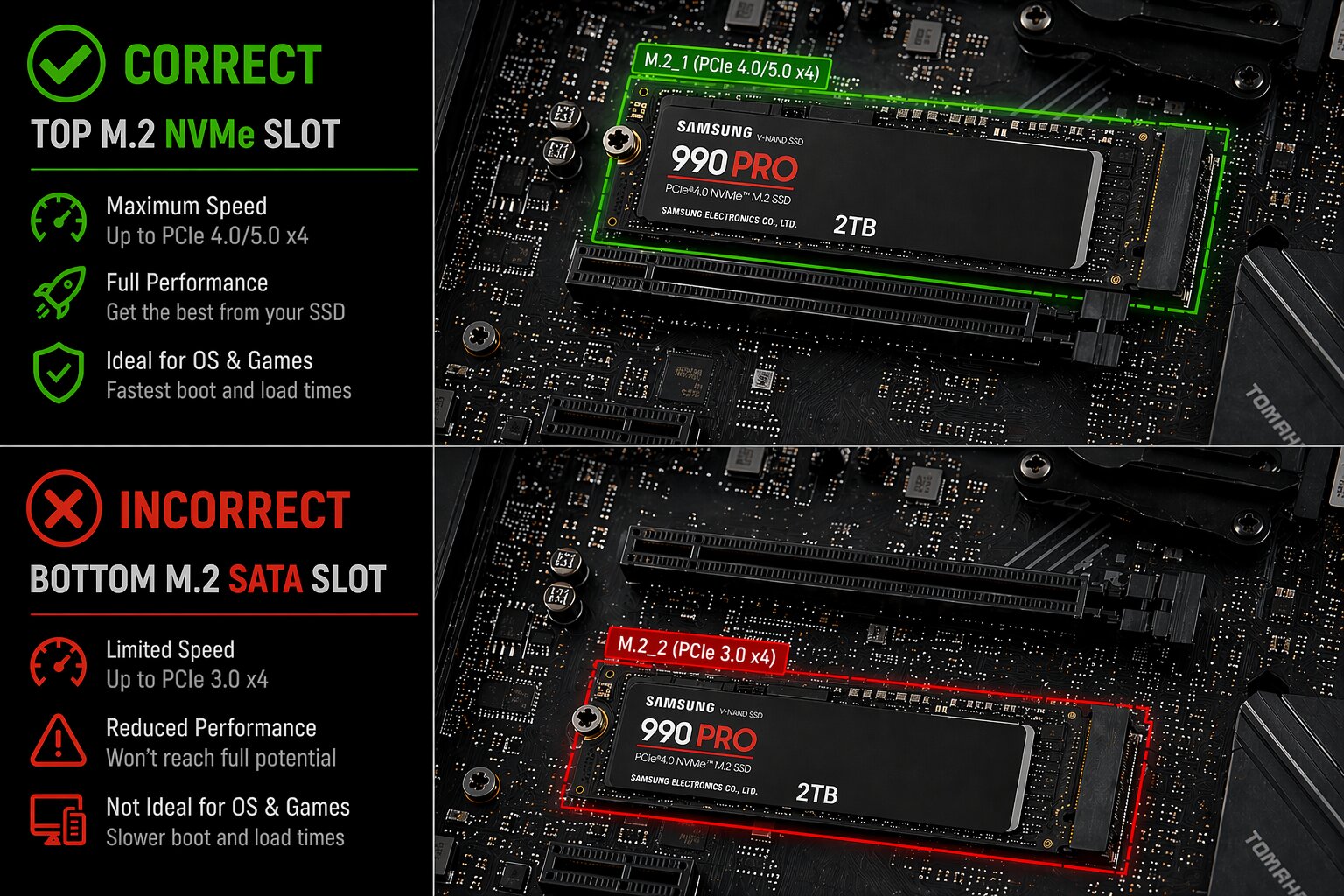
A Quick Way to Check Without Opening Your System
- Look for labels: Some motherboards mark slots as ‘SATA’ or ‘PCIe x4’. If there’s no label, check the manual or manufacturer’s website for slot diagrams.
- Count lanes: NVMe drives need at least four PCIe lanes to operate at full speed. Slots with fewer lanes (like PCIe x2) will downclock the drive automatically.
- Listen for clicks: A drive that doesn’t seat properly may make a slight clicking sound when inserted, indicating it’s not fully engaged in the right slot.
If your system lacks clear labeling or documentation, a quick test can reveal the culprit. Installing a known high-speed NVMe drive and measuring its performance using storage benchmarks will show whether you’re hitting the expected speeds or something far lower.
How to Future-Proof Your Build
Choosing the right slot isn’t just about fixing current slowdowns—it’s also about preparing for future upgrades. Newer NVMe drives, like those based on the PCIe 4.0 or 5.0 standards, demand even more precise slot matching to avoid compatibility issues down the line.
For developers and power users who rely on fast storage for compilation, data processing, or media workflows, this detail matters. A misplaced SSD can turn a high-end workstation into a bottleneck that undermines the rest of the system’s capabilities.
In most cases, the fix is simple: relocating the drive to the correct slot and ensuring it’s seated properly. But without clear guidance, many users remain unaware that their hardware isn’t performing as intended—until they dig deeper into benchmarks or notice unexpected lag in everyday tasks.