Is your PC running hotter than a summer day in a server room? Unexpected shutdowns, sluggish performance during demanding tasks, or even a system that throttles itself mid-game could all point to overheating. Yet Windows offers no built-in way to check CPU temperatures—leaving users to rely on third-party tools to avoid frying their hardware.
For those pushing the limits—whether overclocking a Ryzen 7 9850X3D or just running a high-end workload—keeping an eye on temperatures isn’t just good practice; it’s a necessity. But how do you measure it, and what numbers should set off alarm bells?
The first step is simple: install a monitoring tool. The most straightforward option is Core Temp, a lightweight utility that displays real-time temperatures in your system tray. During installation, beware of bundled bloatware—uncheck any extra offers before proceeding. Once installed, Core Temp shows average CPU temperatures at the bottom of its window, with per-core details accessible via the system tray icon. For AMD Ryzen users, focus on the Tdie reading (the actual die temperature), not Tctl, which may include an artificial offset for fan control.
Other tools like HWInfo, NZXT Cam, or Open Hardware Monitor provide deeper insights, including voltage, clock speeds, and even GPU temperatures. NZXT Cam, in particular, stands out with its clean interface and additional features like in-game FPS overlays and overclocking tools. Mobile apps let you monitor your system remotely, though they’re more useful for enthusiasts than casual users.
So, what’s a safe temperature? Under 60°C is ideal, while 60–70°C is still manageable but worth investigating if sustained. 70–80°C signals potential cooling issues—check for dust buildup or failing fans. Anything above 80°C under normal use is risky, and 90°C+ demands immediate action. Laptops may briefly hit the low 80s during heavy gaming, but prolonged exposure above 85°C can damage components over time.
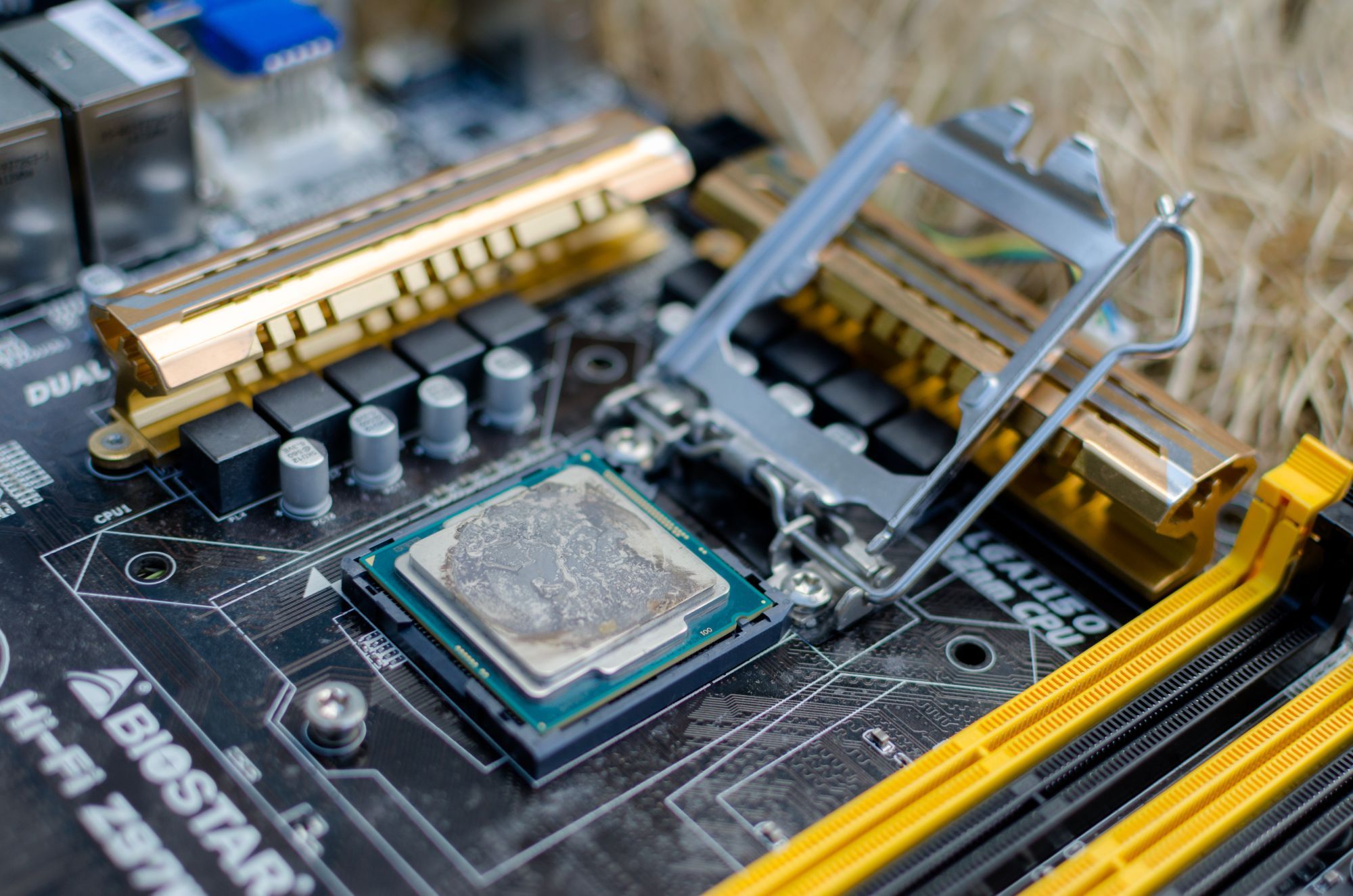
If temperatures are too high, start with basic maintenance: blow out dust with compressed air ($16 for a two-pack) and ensure fans spin freely. If that doesn’t help, the thermal paste between your CPU and cooler may have dried out. Reapplying a fresh layer (under $10 for high-quality options) can drop temperatures significantly. For persistent heat, upgrading to a better cooler—like the Cooler Master Hyper 212 ($26) or the premium Noctua NH-D15 ($130)—might be necessary. Liquid cooling systems offer another path, though they require more space and maintenance.
For overclockers or those running high-TDP chips like the Ryzen 7 9850X3D, even stock coolers can struggle. In such cases, a 240mm or 360mm liquid cooler could be the difference between stable performance and thermal throttling. The key is balancing cost, case compatibility, and cooling capacity—no single solution fits every build.