Windows 11 includes a powerful but underutilized security feature called Smart App Control, designed to scrutinize every application before it runs. Unlike traditional antivirus tools that rely on known threat databases, this system analyzes executables in real time using Microsoft’s cloud-based security intelligence to block malware and compromised software—even if it’s not yet flagged by conventional defenses.
For months, the feature operated primarily on newly installed systems, requiring a clean setup to activate. But a recent update in February 2026 has expanded eligibility, allowing existing Windows 11 PCs to enable it without a full reinstall. Here’s what’s changed and how to ensure your system is taking advantage of this extra protection.
How Smart App Control Works—and Why It Matters
Smart App Control acts as a preemptive gatekeeper. When an application launches, it checks the file against Microsoft’s threat intelligence database, determining whether it’s safe to execute. This isn’t just about viruses; it can catch zero-day exploits, hijacked installers, or even legitimate software repackaged with malicious payloads.
The feature operates in two modes: Evaluation mode (a 30-day trial period) and Full mode (permanent activation). Starting in January 2025, Windows 11 began automatically placing newly installed systems into Evaluation mode to monitor usage patterns. If no conflicts arise—such as blocked games or developer tools—the system transitions to Full mode after the trial. However, users who set up their PCs before this rollout may still need to enable it manually.
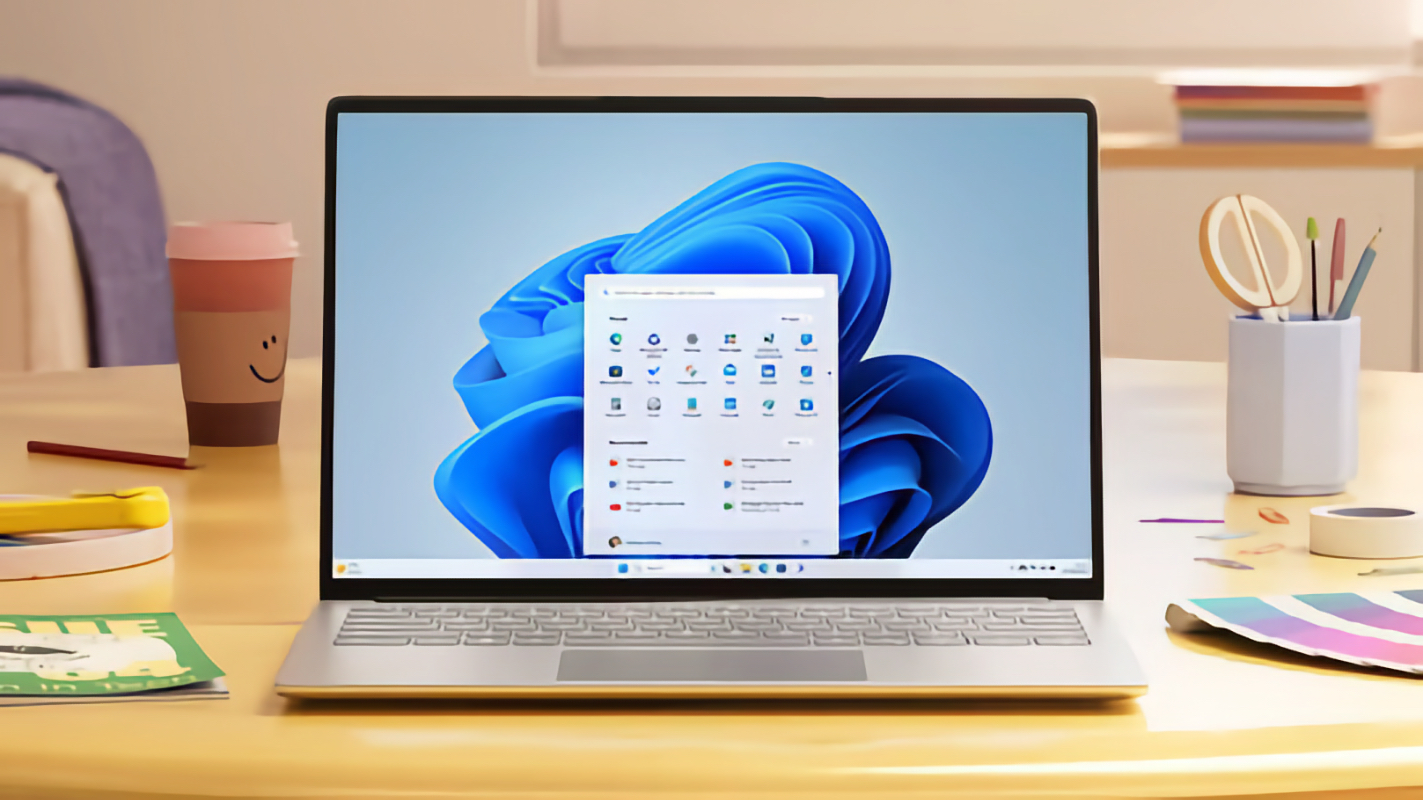
The February 2026 Update: A Critical Expansion
A patch released in February 2026 removed a major restriction: Smart App Control is now available to all Windows 11 devices, not just those with fresh installations. This means if you’ve been running Windows 11 for years, you can still benefit from its protections without reinstalling the OS.
To check if Smart App Control is active, navigate to Windows Security > App & browser control. Here, you’ll see whether the feature is in Evaluation mode, Full mode, or disabled entirely. If it’s not enabled, you can turn it on directly—though some users may prefer the gradual Evaluation mode to test compatibility with their workflow.
What to Do Next
- Verify your status: Open Windows Security and review the App & browser control settings to confirm Smart App Control’s mode.
- Enable if needed: If the feature isn’t active, you can toggle it on. New installations will default to Evaluation mode, while older systems may require manual activation.
- Monitor for conflicts: During the Evaluation period, pay attention to any blocked applications. If critical software is affected, you can disable Smart App Control—but weigh the trade-off against the added security.
While Smart App Control isn’t a replacement for traditional antivirus tools, it adds a critical layer of defense against evolving threats. With cyberattacks growing more sophisticated, even basic precautions like this can make a difference. The best part? It’s already built into Windows 11—you just need to make sure it’s turned on.