When a PC starts stuttering, freezing, or throwing up cryptic error messages, the instinct is often to blame software bloat or malware. But the real culprit might be lurking deeper: your hard drive itself. Corrupted files, bad sectors, or fragmented data can silently degrade performance until even basic tasks feel like waiting for an eternity. The solution isn’t a costly upgrade or a factory reset—it’s a built-in Windows tool that’s been overlooked by most users.
For decades, the CHKDSK utility has been the go-to for diagnosing and repairing disk errors. Yet despite its power, many users never run it—or don’t know how to interpret its results. A single command can scan for corruption, mark damaged sectors as unusable, and recover readable data from them, often restoring a sluggish system to near-normal speeds without reinstalling an operating system.
The Two-Step Fix for a Faster, Stable PC
Running CHKDSK doesn’t require third-party software or technical expertise. The process is straightforward, though it does demand a brief reboot to complete. Here’s how to execute it
- Open Command Prompt as Administrator: Press the Windows key, type cmd, then right-click the result and select Run as administrator.
- Enter the Command: Type
chkdsk C: /f /r /xand press Enter. The flags do the heavy lifting:/ffixes errors,/rlocates bad sectors and recovers data from them, and/xforces the drive to dismount (if possible) for a cleaner scan. - Schedule or Confirm the Scan: If the drive is in use, Windows will prompt you to schedule the scan for the next restart. Confirm with Y, then shut down or reboot immediately.
During the reboot, CHKDSK will run in the background, analyzing the drive for structural issues. The process can take anywhere from a few minutes to over an hour, depending on the size of the disk and the extent of corruption. Once complete, Windows will boot normally, and you’ll find a detailed report in the Event Viewer under Windows Logs > Application. This log will list any errors found—and whether they were successfully repaired.
Why This Works—and When to Use It
CHKDSK’s effectiveness stems from its ability to address two common disk-related problems
- Logical Errors: These include corrupted file allocations, mismatched metadata, or fragmented data that slow down read/write operations. CHKDSK verifies the file system’s integrity and repairs inconsistencies.
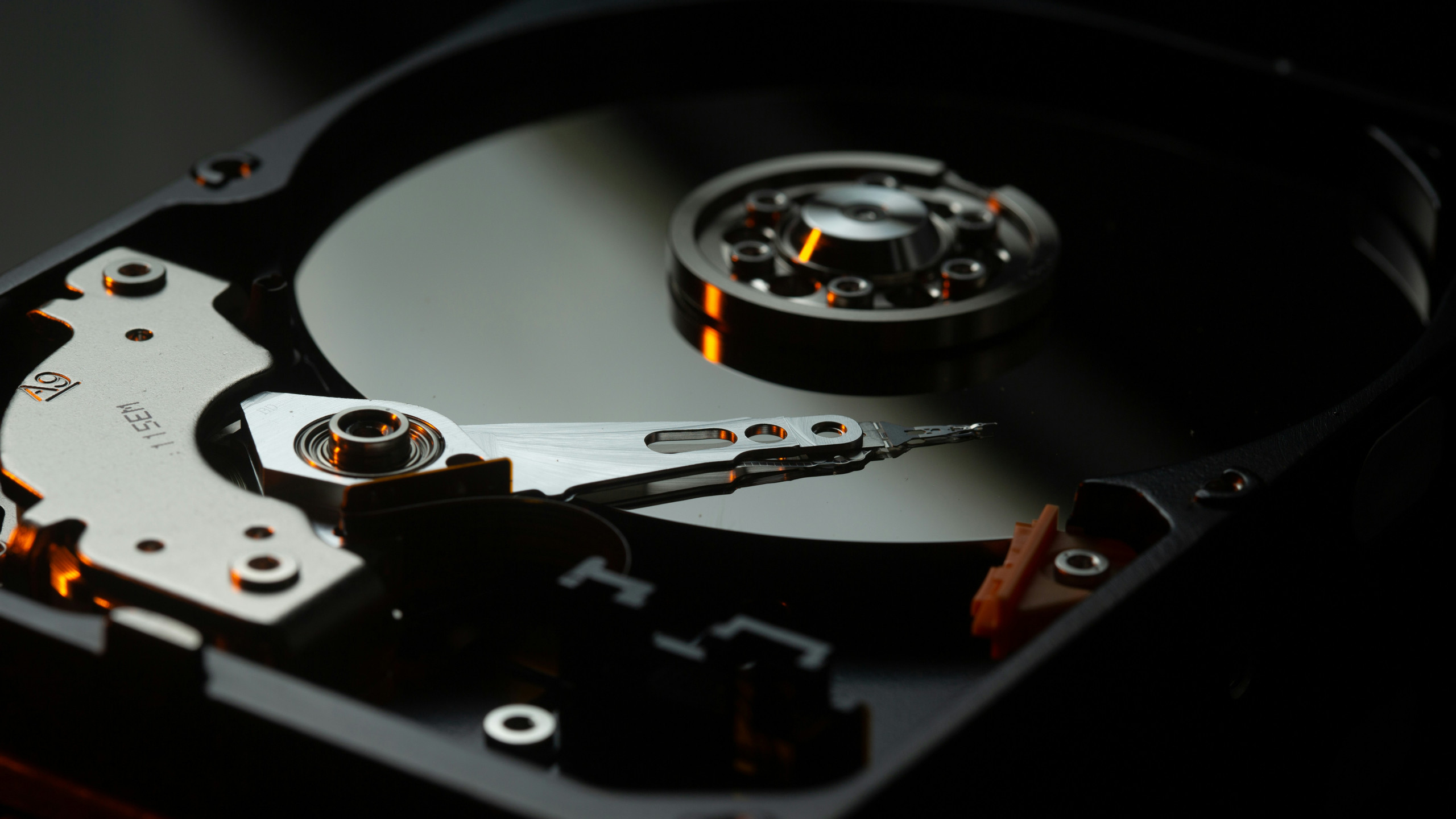
- Physical Bad Sectors: Over time, hard drives develop physical flaws where data can no longer be reliably stored. CHKDSK marks these sectors as bad and relocates the data, preventing further corruption.
This tool is particularly useful for
- PCs that boot slowly or exhibit random freezes.
- Systems where files suddenly become inaccessible or programs crash during startup.
- Drives that emit unusual noises (clicking or grinding), a sign of mechanical failure.
However, CHKDSK isn’t a cure-all. For SSDs, the command is less critical since these drives lack physical sectors in the traditional sense. Running it on an SSD can even reduce its lifespan by causing unnecessary writes. If you’re using an SSD, focus on optimizing Windows for performance—such as disabling unnecessary startup programs or upgrading to a faster NVMe drive.
What to Expect After the Scan
If CHKDSK finds and fixes errors, you should notice immediate improvements: files will open faster, applications will launch without delays, and the system will feel more responsive. In some cases, the utility recovers data from failing sectors, preventing permanent loss. The Event Viewer log will provide a summary of what was repaired, though it’s not always detailed enough for advanced troubleshooting.
For ongoing maintenance, consider running CHKDSK once every few months—or whenever you suspect disk issues. Pair it with regular defragmentation (for HDDs) and disk cleanup tools to keep your system running smoothly. And if your drive is failing entirely, CHKDSK may buy you time, but replacing it is the only permanent solution.
In an era where tech support often points users toward complex solutions or costly upgrades, CHKDSK remains a testament to Windows’ hidden depth. A few minutes of effort can transform a struggling PC into a reliable machine—proof that sometimes, the simplest fixes are the most powerful.